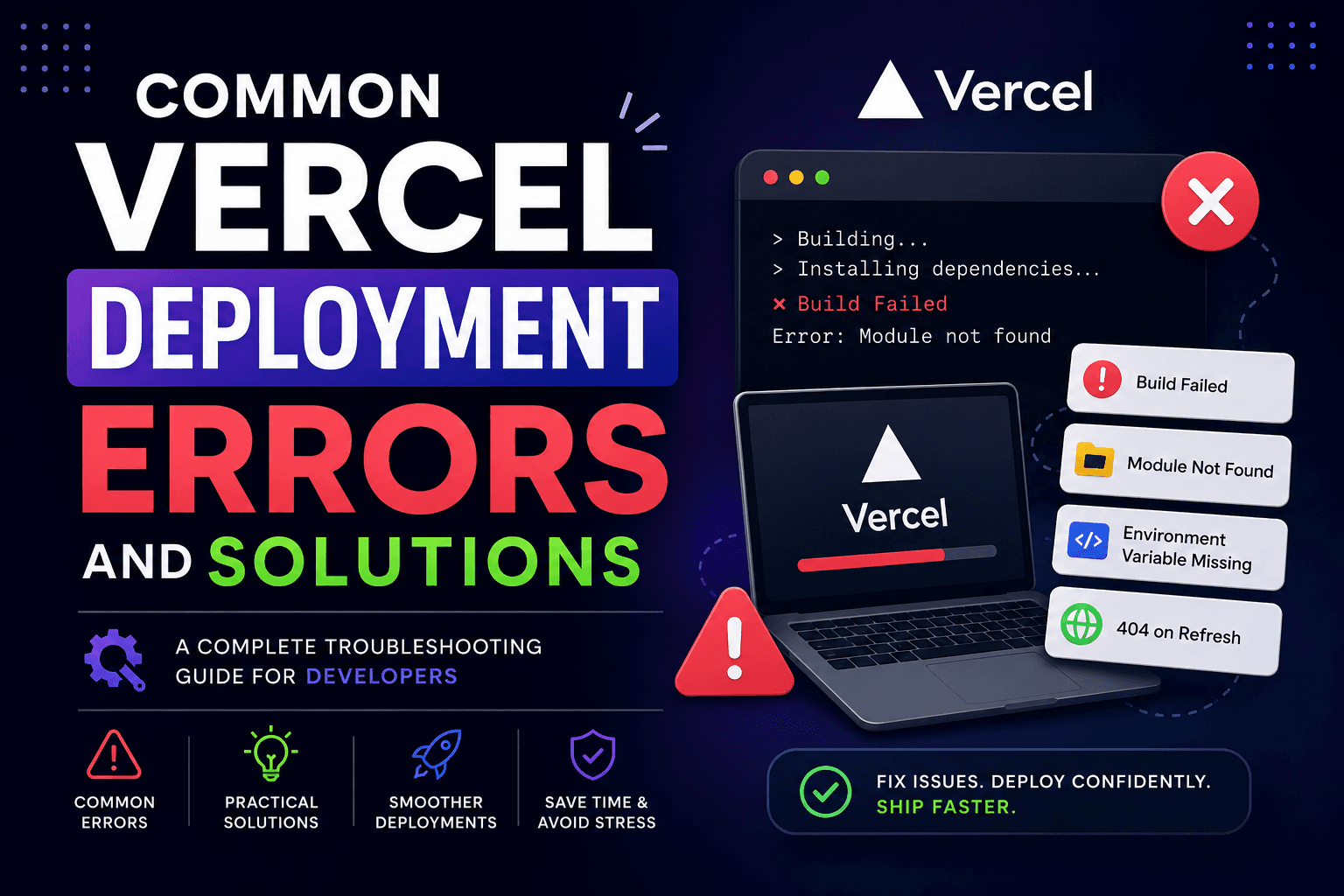
Deploying a web application should be the easiest part of development—but sometimes, it becomes the most frustrating. Your project runs perfectly on your local machine, but as soon as you deploy it to Vercel, the build fails with mysterious errors.
If you've ever seen messages like "Module not found", "Build failed", or "Cannot read environment variable", you're not alone.
In this guide, we'll explore the most common Vercel deployment errors and how to solve them quickly. Whether you're deploying a React, Vite, or Next.js project, these solutions will help you avoid hours of debugging.
Table of Contents
Why Does Deployment Fail?
Module Not Found
Case-Sensitive Import Errors
Missing Environment Variables
npm Install Failed
Build Command Failed
Node.js Version Mismatch
Missing Dependencies
TypeScript Errors
ESLint Build Errors
SPA Refresh Returns 404
API Not Working
Image Optimization Issues
Deployment Checklist
Final Thoughts
Why Does Deployment Fail?
Your local machine and Vercel's Linux servers are different environments.
Some common differences include:
Linux is case-sensitive.
Missing environment variables.
Different Node.js versions.
Missing dependencies.
Incorrect build settings.
Unsupported APIs.
Build cache issues.
Understanding these differences makes debugging much easier.
1. Module Not Found
One of the most common deployment errors is:
Module not found:
Cannot find module '@/components/Button'
Before pushing your project, verify the following:
Build succeeds locally.
No TypeScript errors.
No ESLint errors.
Import paths match file names.
Environment variables are configured.
package.json is updated.
package-lock.json is committed.
Node.js version is compatible.
Images are optimized.
API URLs are not hardcoded.
React Router rewrites are configured.
GitHub repository is up to date.
Best Practices
Test with npm run build before every deployment.
Keep dependencies updated.
Use environment variables for secrets.
Never commit .env files.
Follow consistent naming conventions.
Review deployment logs carefully—they often point directly to the problem.
Deploy small, incremental changes to make debugging easier.
Frequently Asked Questions
Why does my project work locally but fail on Vercel?
Local development often runs on Windows or macOS, while Vercel builds on Linux. Differences in file systems, environment variables, and Node.js versions can expose issues that aren't visible locally.
How do I view deployment logs?
Open your Vercel project, select the failed deployment, and inspect the build logs. They usually include the exact file, line number, or command that caused the failure.
Should I commit .env files?
No. Environment variables often contain sensitive information. Configure them in the Vercel dashboard instead.
How can I avoid deployment failures?
Run these commands before pushing:
npm run lint
npm run build
Fix any reported issues locally before deploying.
Final Thoughts
Deployment errors are a normal part of every developer's workflow. The key is learning how to read build logs, understand the environment differences between your local machine and production, and apply a systematic debugging approach.
Most Vercel deployment issues fall into a few common categories: incorrect import paths, missing environment variables, dependency problems, or build configuration mistakes. Once you're familiar with these patterns, troubleshooting becomes much faster.
The next time a deployment fails, don't panic. Read the logs carefully, reproduce the issue locally, and work through the checklist above. With practice, you'll spend less time debugging and more time shipping features.